


 Click it and Unblock the Notifications
Aadhaar Card Download
Indian citizens do require aadhaar card to enjoy the benefits of various central and state government-run schemes which are aimed to provide the subsidy. Aadhaar card which is provided by the UIDAI acts as both proofs of identification and proof of address. Once you enrol yourself for the Aadhaar at an enrollment centre, you can download the card and print the UIDAI aadhaar card by either using Enrollment ID, Virtual ID or Aadhaar number. One has to follow the below-mentioned steps for UIDAI Aadhaar Download.
How to Print or Download Aadhaar Card Online?
The advancement of the technology has made the UIDAI for electronic storage and retrieval of Aadhaar details. The online version of Aadhaar is known as e-Aadhaar and the same is available in PDF format and aadhaar download can be done from the UIDAI website.
The e-Aadhaar can be accessed via the official UIDAI web portal by using any of the following:
• Using Aadhaar Number
• Using Virtual Identification Form (Virtual ID)
• Using Enrollment Identification Form (Enrollment ID)
Procedure to Download Aadhaar Card using Aadhaar Number
Step 1: Visit the official web portal of UIDAI
Step 2: Click on the “Download Aadhaar” option which is seen under the ‘My Aadhaar’ head in the main page.
Step 3: Select the ‘Aadhaar’ option under the ‘I Have’ section.
Step 4: Enter your 12 – digit unique Aadhaar number.
Step 5: Now proceeding further, select the ‘Masked Aadhaar’ option, if you do not want to show full digits of your respective Aadhaar number.
Step 6: Enter the Captcha Verification Code and Click ‘Send OTP’ option to get the one time password on your registered mobile number with aadhaar.
Step 7: Now enter the OTP which you receive on your mobile number.
Step 8: Now complete the survey and click on the option ‘Verify and Download’ to download the eAadhaar card.
Procedure to Download Aadhaar Card using Virtual Identification Form (Virtual ID)
The aadhaar download using the Virtual Identification Form (VID) is the new addition to the UIDAI’s portal. Follow the below-mentioned steps to download aadhaar card via VID.
Step 1: Visit the official web portal of UIDAI
Step 2: Click on the “Download Aadhaar” option which is seen under the ‘My Aadhaar’ head in the main page.
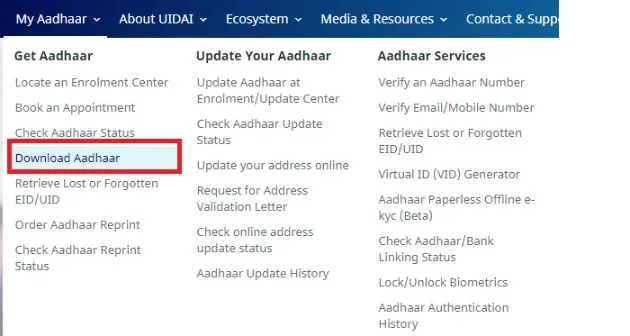
Step 3: Select the ‘VID’ option under the ‘I Have’ section.
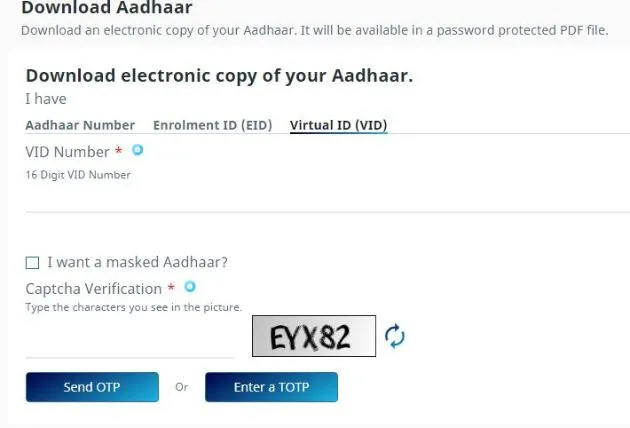
Step 4: Enter the virtual ID, full name, pin code and security code.
Step 5: Proceeding further click on ‘Send OTP’ to generate OTP.
Step 6: An OTP will be sent to your registered mobile number with Aadhaar.
Alternatively, one can also choose the TOTP feature to authenticate your request.
Step 7: Now e-Aadhaar will get downloaded to your system.
Step 8: One can access the same by entering the Aadhaar Card password.
Step 9: Enter the 8 digit aadhaar password to open the PDF file.
Please Note: Aadhaar Card Password consists of 8 digits – the first four letters of your name in capitals as mentioned in your aadhaar card followed by the year of birth in YYYY format.
Procedure to Download Aadhaar Card Using Enrollment Identification Form (Enrollment ID)
If in case, the aadhaar cardholder has forgotten, the aadhaar number then one can still download aadhaar card using the Aadhaar Enrollment Identification Form (Enrollment ID) by following the below-mentioned steps:
Step 1: Visit the official web portal of UIDAI
Step 2: Click on the “Download Aadhaar” option which is seen under the ‘My Aadhaar’ head in the main page.
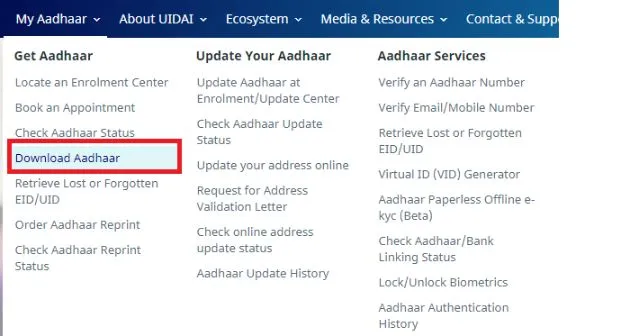
Step 3: Select the ‘Enrollment ID (EID)’ option under the ‘I Have’ section.
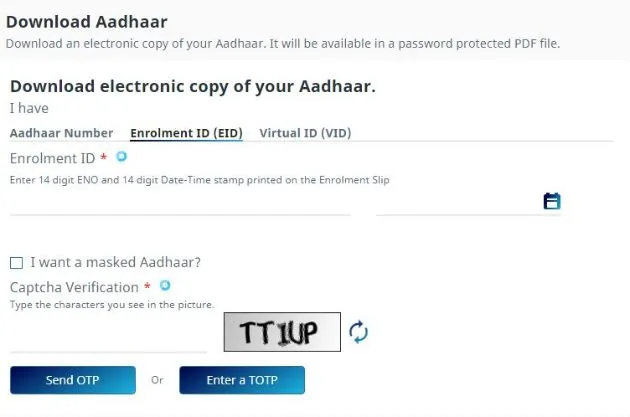
Step 4: Enter your full name followed by pin code, image captcha code.
Step 5: Click on the ‘Request OTP’ to generate OTP.
Step 6: Now proceeding further press ‘Confirm’ button.
Step 7: You will be receiving an OTP on your registered mobile number in aadhaar card.
Step 8: Now enter the OTP and click on the ‘Download Aadhaar’ option.
Procedure to Download Masked Aadhaar
The masked aadhaar card is similar to the regular Aadhaar card. The difference between the two is that your aadhaar number will be partially hidden in case of masked aadhaar and only the last 4 digits of your aadhaar number will be visible for viewing. The main aim of this feature is to protect your Aadhaar number from being disclosed to others. When it comes to the validity of the card, both original aadhaar card, as well as masked aadhaar, is equally valid.
One should follow the below-mentioned steps to download masked aadhaar card:
Step 1: Visit the official web portal of UIDAI
Step 2: Select ‘Download Aadhaar’ option under the ‘My Aadhaar’ heading
Step 3: Now select Aadhaar, VID or Enrollment Number in the “Enter your personal details” section.
Step 4: Select ‘Masked Aadhaar’ in the ‘Select your preference’ section and enter all the other details including your full name as mentioned in aadhaar card, aadhaar number, pin code and security code.
Step 5: Click on ‘Request OTP’ to send an OTP to the register mobile number with aadhaar.
Step 6: Now Click on ‘I Agree’ option to give consent to UIDAI for aadhaar authentication using your details.
Step 7: Click on ‘Confirm’ to send OTP details to your registered mobile number in aadhaar card
Step 8: Proceeding further now enter the OTP and click on ‘Download Aadhaar’ to download the masked Aadhaar Card.
Procedure for Aadhaar Card Download by Name and Date of Birth
If individuals who hold aadhaar card do not remember their aadhaar number or EID, they can still download their aadhaar card by name and date of birth. Know the detailed procedure for aadhaar card download by name and date of birth:
Step 1: Visit the official website of UIDAI
Step 2: Enter your full name and either the mobile number or your registered e-mail ID followed by the security code.
Step 3: Click on the ‘Send OTP’ button
Step 4: Enter the OTP received on your registered mobile number in aadhaar card and click on the ‘Verify OTP’ button.
Step 5: A message will appear on the screen, which will inform that the aadhaar number is sent to your registered mobile number in aadhaar card
Step 6: Once you receive your Aadhaar Enrollment Number on your mobile, visit the e-Aadhaar page on the UIDAI web portal.
Step 7: Click on the ‘I have Aadhaar’ option.
Step 8: Enter the Aadhaar Enrollment number, followed by your full name, pin code, image captcha code.
Step 9: Click ‘Request OTP’
Step 10: An OTP will be sent to aadhaar card registered mobile number
Step 11: Now enter the OTP and click ‘Download Aadhaar’ to download your aadhaar card.
Procedure to Download e-Aadhaar using Umang App
Steps to download Aadhaar using Umang App
Step 1: Install and Open the Umang App

Step 2: Click on ‘Aadhaar Card’ under all services tab
Step 3: Proceeding further click ‘View Aadhaar Card from DigiLocker’ option
Step 4: Now login with your DigiLocker Account or Aadhaar number
Step 5: Enter the OTP which you received on your registered mobile number in aadhaar
Step 6: Click on ‘Verify OTP’
Step 7: Proceed further and download your Aadhaar Card by clicking on the download icon.
Procedure to Download e-Aadhaar from DigiLocker Account
DigiLocker, the national Digital Locker System introduced by the Government of India under the Ministry of Electronics and IT provides access to authentic documents/ certificates including driving license, academic mark list, vehicle registration in a digital format from the original issuers of these certificates.
Follow the below-mentioned steps to download Aadhaar from DigiLocker Account:
Step 1: Login to the DigiLocker Account
Step 2: Click on the ‘Sign In’ option and enter the 12 digit aadhaar number
Step 3: Click on ‘Verify’ option to get the OTP
Step 4: Now enter the OTP received on the aadhaar card registered mobile number
Step 5: Click on ‘Verify OTP’
Step 6: Proceeding further ‘Issued Document’ page appears.
Now download ‘e-Aadhaar’ using ‘Save’ icon.
How to download e-Aadhaar from the e-Aadhaar link?
Follow the below-mentioned steps to download e-Aadhaar card:
• Individuals who already have an Aadhaar number can enter the 12 digit number. Individuals who are yet to receive their Aadhaar number must note down the enrollment number, time and date which is given in the acknowledgement slip that will be given to them at the time of enrollment of aadhaar application.
• Visit the UIDAI website and enter all the required details to proceed further.
• Click on the option titled, “Get One Time Password” (OTP)
• You will receive OTP or one-time password to your registered mobile number and the same has to be entered into the given field
• Enter the first four letters of your name in capitals combined with the year of birth as the password to open the e-aadhaar PDF file.
FAQ's
Q: How are Aadhaar details authenticated?
ANS. Aadhaar details are usually authenticated using the OTP function. The particular agency will request to UIDAI which in turn sends the OTP to the registered mobile number and the user must enter this OTP to authenticate the details.
Q. What is the next step if the Aadhaar authentication is rejected?
ANS: In case your Aadhaar authentication is rejected for some reason, you can try the other method like biometrics or TOTP.
Q. What should I do if the message Aadhaar authentication failed when updating my KYC information on my EPF portal?
ANS. You can try to update your information again in case your authentication is not approved by UIDAI.
Q. What should I do if my Aadhaar fingerprint authentication is not approved for a new mobile SIM card?
ANS. You can try your other fingers if your fingerprint does not match. Any of your fingers must match for biometric authentication.
Latest Updates
- Aadhaar Card Centres in Bangalore
- Aadhaar Card Centres in Chennai
- Aadhaar Card Centres in Delhi
- Aadhaar Card Centres in Mumbai
- Aadhaar Card Centres in Kolkata
- Aadhaar Card Centres in Hyderabad
- Aadhaar Card Centres in Pune
- Aadhaar Card Centres in Vadodara
- Aadhaar Card Centres in Trivandrum
- Aadhaar Card Centres in Jaipur
- Aadhaar Card Centres in Lucknow
- Aadhaar Card Centres in Ahmedabad
- Aadhaar Card Centres in Coimbatore
- Aadhaar Card Centres in Vizianagaram
- Aadhaar Card Centres in Madurai
- Aadhaar Card Centres in Patna
- Aadhaar Card Centres in Nagpur
- Aadhaar Card Centres in Chandigarh
- Aadhaar Card Centres in Surat
- Aadhaar Card Centres in Bhubaneswar
- Aadhaar Card Centres in Mangaluru
- Aadhaar Card Centres in Visakhapatnam
- Aadhaar Card Centres in Nashik
- Aadhaar Card Centres in Mysore
- Aadhaar Card Centres in Indore
- Aadhaar Card Link to Mobile Number
- Linking Aadhaar with Bank Account
- EPF Aadhaar Linking
- Link Aadhaar to LPG
- Linking Aadhaar with PAN Card
- Link Aadhaar to Ration Card
- Aadhaar PVC Card
- How to Link Aadhaar to PM Kisan Samman Nidhi?
- Aadhaar Card Status
- Aadhaar Card Services
- How to Download e- Aadhaar Card through Aadhaar Face Authentication
- Aadhaar Card KYC
- Aadhaar Authentication History
- Aadhaar Card Download
- Aadhaar Enabled Payment Systems
- Link Aadhaar to Mutual Funds
- How to Link Aadhaar with NPS Account
- Aadhaar Card Correction Form
- Procedure to Lock And Unlock Aadhaar Biometrics Data
- Aadhaar For Kids
- mAadhaar
- Aadhaar Card Update
- Aadhaar Virtual ID
- Duplicate Aadhaar Card
- How to link Aadhaar with IRCTC Account?
- UIDAI
- Key Problems Associated with Aadhaar Card
- Linking Aadhaar Card to Different Documents
- Linking Aadhaar with Caste Certificates
- Linking Aadhaar with Driving Licence
- Jio Aadhaar Linking Procedure
- Linking of Aadhaar Number with BSNL Mobile Number
- Procedure to link Aadhaar with LIC Policy
- Procedure to link Aadhaar with SBI Life Insurance Policy
- Linking of Aadhaar Card with Vodafone Number
- Linking of Aadhaar Card with Airtel Number
- Aadhaar Card Customer Care Number
- Procedure to Lodge Aadhaar Related Complaints
- Aadhaar Card For Non-Resident Indians(NRIs)
- Aadhaar Card Application Form
- Seeding Aadhaar Number with Demat Account
- Aadhaar Card Password
- Gold Rate Calculator
- 7th Pay Calculator
- 8th Pay Calculator
- NPS Calculator
- PF Calculator
- Gratuity Calculator
- Income Tax Calculator
- Bank FD Calculator
- Bank RD Calculator
- Bank FD Interest Rate
- Bank RD Interest Rate
- EMI Calculator
- Home Loan EMI Calculator
- Personal Loan EMI Calculator
- Car Loan EMI Calculator
- SIP Calculator
- GST Calculator
-
 Infosys ADR Trading Briefly Halted After Massive 40% Rally, Wipro ADRs Surge; What’s Fueling the Rally?
 -
 Upcoming Dividend Record Date: Canara Robeco Share To Pay 15% Dividend To Shareholders; How To Get Eligible?
 -
 ICICI Prudential vs HDFC vs Nippon Life India: Can The Newly Listed AMC Outshine Its Peers? Check Target Price
 -
 Nagaland Sambad 8 PM Evening Dear Friday Weekly Lottery Result LIVE on 19 December 2025: Check Winners List
 -
 RRP Semiconductor Share Jumps Over 55,000 Per Cent in 20 Months, Triggers Investor Warnings
 -
 How a Year-End Debt Check Help Families Enter New Year Stress-Free
 -
 Buying Apple iPhone 17? Price Hike Rumours Hint at Rs 7,000 Increase in India | What We Know So Far
 -
 No Entry for Non-BS-VI Vehicles in Delhi From Noida, Gurugram, Ghaziabad: How to Check & Renew PUC Certificate
 -
 RBI MPC Minutes: Governor Voted for Rate Cut Considering Benign Inflation, Trade Talks Can Boost Growth
 -
 It’s A Boy For Bharti Singh, Haarsh Limbachiyaa! Couple Welcomes Baby After On-Set Emergency ; Check Net Worth
-
Block for 8 hours
-
Block for 12 hours
-
Block for 24 hours
-
Don't block

 Sign in with Google
- Male
- Female
- Others
- Under 18
- 18 to 25
- 26 to 35
- 36 to 45
- 45 to 55
- 55+